
Table Of Content
This post explains how to connect Claude Code to a local LLM using Ollama, redirecting API calls from Anthropic’s servers to your own hardware. More developers are starting to do this as open models and consumer hardware improve. The reasons vary: reducing API costs, keeping code off external servers for privacy or compliance, or simply working offline.
What We Are Working With
Claude Code is Anthropic’s widely adopted agentic coding assistant. It reads and writes files, runs commands, and reasons across your codebase. By default it talks to Anthropic’s API, but at its core it is just an HTTP client following a specific API contract, and that is what we are going to exploit.
Ollama is a local model runtime for serving open-weight models on your own hardware. There are other options worth knowing about: llama.cpp gives you lower-level control, and LM Studio offers a GUI-first experience. For this post, Ollama is the right choice for its simplicity.
Local vs. Cloud: What You Are Actually Trading
With Anthropic’s API you pay per token for a highly optimized model running on enterprise infrastructure, and every prompt leaves your machine. Running locally gives you zero per-token cost and full data locality, but lower model quality and hardware-dependent performance. The open-weight models available today are capable, but they are not Claude, and the gap shows on complex multi-file tasks. GPU acceleration is what makes local inference practical: without it, Ollama falls back to CPU, and for an agentic tool that generates large volumes of text per turn, that is slow enough to be a real problem.
Prerequisites
If you are on an NVIDIA GPU, verify that your drivers, nvidia-smi, and the CUDA toolkit are working before anything else. If Ollama cannot reach your GPU it falls back to CPU silently, and depending on the model size this can mean painfully slow inference or the model becoming effectively unusable. You will not get a warning, so it is worth confirming upfront.
1 | nvidia-smi |
nvidia-smi is a command-line tool that queries your NVIDIA GPU and reports its current state. When it runs successfully, you should see a table showing your GPU model, driver version, CUDA version, total VRAM, and current memory usage. If the command is not found or returns an error, your drivers are not properly installed. If it runs but shows no GPU, CUDA cannot see the device. Either way, fix it before moving on.
Installing Claude Code
If you do not have Claude Code installed yet, the process takes about a minute. On Linux or macOS:
1 | curl -fsSL https://claude.ai/install.sh | bash |
On Windows (requires Node.js):
1 | npm install -g @anthropic-ai/claude-code |
Choosing a Model
One hard requirement: the model must support tool calling natively. Claude Code will simply not work with a model that does not implement it. It relies entirely on tool use to read files, run commands, and interact with your environment, so this is not optional.
Ollama’s full model library is worth browsing. Even an 8B model can produce useful results on well-scoped tasks, but for more demanding work, 27B and above is where things feel consistently reliable. Two models that work well in practice are qwen3.6:27b and qwen3.6:35b. For constrained hardware, qwen3.5:9b is also worth considering: it is smaller but still supports tool calling and performs well on focused tasks. Its model page is at ollama.com/library/qwen3.5.
My machine is an Intel Xeon W-11955M (16 cores @ 4.9GHz), an NVIDIA RTX A3000 Mobile with 6GB of VRAM, and 64GB of system RAM. With only 6GB of VRAM, the larger models are not a realistic option without heavy CPU offloading, so I went with qwen3.5:9b. Let’s pull it by running:
1 | ollama pull qwen3.5:9b |
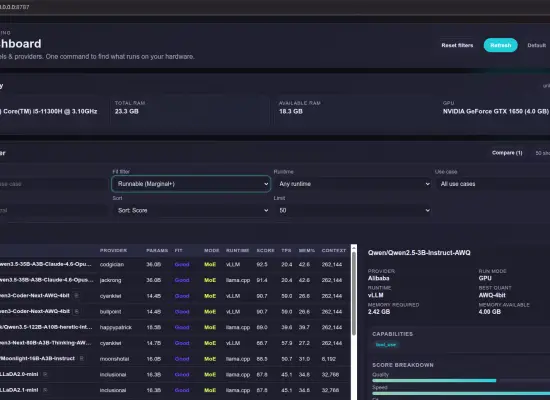
Before committing to a large download, check whether the model will actually fit your hardware. I covered a tool called llmfit that does exactly this in a previous post: it profiles your hardware and estimates runability before you download anything.
After pulling, confirm the model name exactly as Ollama reports it:
1 | ollama list |
That name is what you will use in the connection step. Copy it precisely, as capitalization and suffixes matter.
Setting the Context Window
Ollama often defaults to a 4096 token context, which is not enough for agentic coding. Claude Code sends long prompts that combine file contents, conversation history, and tool outputs, and a 4096 token ceiling will cause silent truncation. To fix that let’s increase it to 16k. Run ollama from your terminal, select “Chat with a model”, choose your model, and once inside the session run:
1 | /set parameter num_ctx 16384 |
Then save a named copy of the model with those settings so they persist across sessions:
1 | /save qwen3.5-9b-16k |
Use a name that reflects the base model and context size. This saved name is what you will reference when connecting it.
Connecting Claude Code to a Local LLM with Ollama
Two environment variables are all that is needed. On Linux or macOS:
1 2 | export ANTHROPIC_AUTH_TOKEN=ollama export ANTHROPIC_BASE_URL=http://localhost:11434 |
On Windows PowerShell:
1 2 | $env:ANTHROPIC_AUTH_TOKEN = "ollama" $env:ANTHROPIC_BASE_URL = "http://localhost:11434" |
These variables are session-scoped and will reset when you close the terminal. Add both lines to your ~/.bashrc (or ~/.zshrc) and reload with source ~/.bashrc to make them persist. On Windows, set them as permanent system environment variables via System Properties.
The token value is arbitrary. Ollama does not authenticate, so the string has no effect. The meaningful variable is ANTHROPIC_BASE_URL, which redirects Claude Code’s API calls to your local instance. Ollama also has a built-in shortcut: run the ollama command and select “Launch Claude Code” to skip this configuration entirely.
Once the variables are set, launch Claude Code with your saved model name:
1 | claude --model qwen3.5:9b-16k |

Connecting to Ollama Running on Another Computer
If your GPU lives in another computer and you want to connect to it from your current machine, you need to expose Ollama on the network. On Linux, edit the systemd service file:
1 | sudo nano /etc/systemd/system/ollama.service |
Under [Service], add:
1 | Environment="OLLAMA_HOST=0.0.0.0" |
Then reload and restart:
1 2 | sudo systemctl daemon-reload sudo systemctl restart ollama |
On Windows, set OLLAMA_HOST=0.0.0.0 as a persistent system environment variable via System Properties and restart the Ollama application.
Note that 0.0.0.0 accepts connections from any machine on your network. Make sure your LAN is adequately secured. For external access, a VPN is a safer approach than direct port forwarding.
On the client machine, point Claude Code at the host’s LAN IP. E.g. For a LAN IP set to 192.168.0.225 On Linux or macOS:
1 2 | export ANTHROPIC_AUTH_TOKEN=ollama export ANTHROPIC_BASE_URL=http://192.168.0.225:11434 |
On Windows PowerShell:
1 2 | $env:ANTHROPIC_AUTH_TOKEN = "ollama" $env:ANTHROPIC_BASE_URL = "http://192.168.0.225:11434" |
Real-World Test
To put some numbers behind this, I ran a quick test using qwen3.5:9b with the 16K context window. Claude Code was asked to write a fully functional HTML calculator from scratch. It produced 175 lines of code in roughly 2 minutes and 30 seconds. Not instant, but for a self-contained task running on consumer hardware with a GPU/CPU memory split, it is genuinely usable.
The screenshot below shows the memory split Ollama reported during that session. With only 6GB of VRAM available, the model was distributed across the GPU and system RAM, which is what drives the slower generation compared to a model that fits entirely in VRAM.


Qwen3.5:9b with a 16K context on an RTX A3000 Mobile (6GB VRAM). Ollama distributes the model across GPU and system RAM when VRAM alone is not sufficient.
The result of that session, the calculator Claude Code built:

Final Thoughts
This setup works, and it works reasonably well on capable hardware. The context window and VRAM are the real constraints: aim for at least 8K of context, and keep in mind that Anthropic’s models operate at a scale simply not comparable to what runs locally, estimated at over a trillion parameters on purpose-built infrastructure. The gap shows on complex tasks, but for focused, well-scoped work, local inference is a solid and increasingly practical alternative.
TL;DR
1 2 3 | export ANTHROPIC_AUTH_TOKEN=ollama export ANTHROPIC_BASE_URL=http://localhost:11434 claude --model qwen3.5:9b-16k |
For a remote machine, swap localhost for the host’s LAN IP. Add the exports to ~/.bashrc to make them persist.


Thanks! This is the first tutorial that made it possible for me to get Claude Code working offline.
Hi, I’m glad it helped!